Edit Audio on the Camtasia Timeline in Audiate
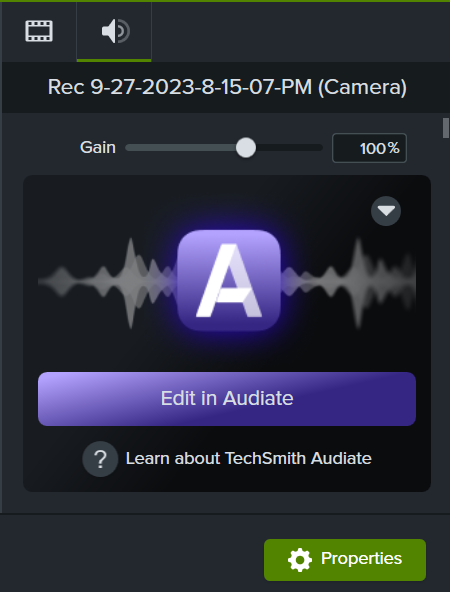
- Click to select an audio clip on the timeline in Camtasia Editor.

- Select Properties > Audio tab > Edit in Audiate button, or right-click (Windows) or control+click (Mac) the audio clip on the timeline and select Edit in Audiate.
If you have not saved your Camtasia project, Camtasia prompts you to do so. - Audiate opens. Select an option for how to display the content in Audiate and click Import.
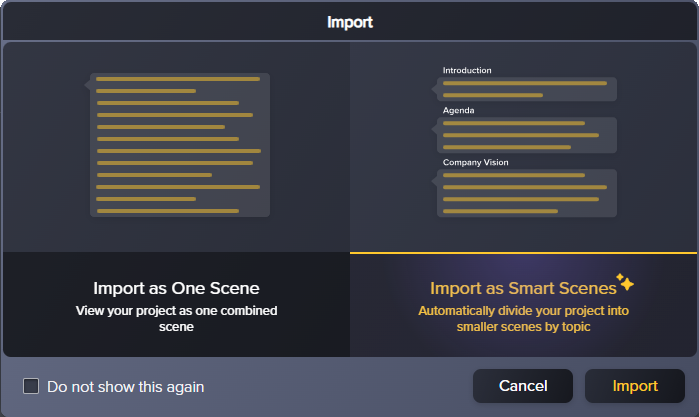
If you select Import as Smart Scenes, Audiate automatically divides your project into smaller segments and generates titles for each. This option helps for navigating through longer projects.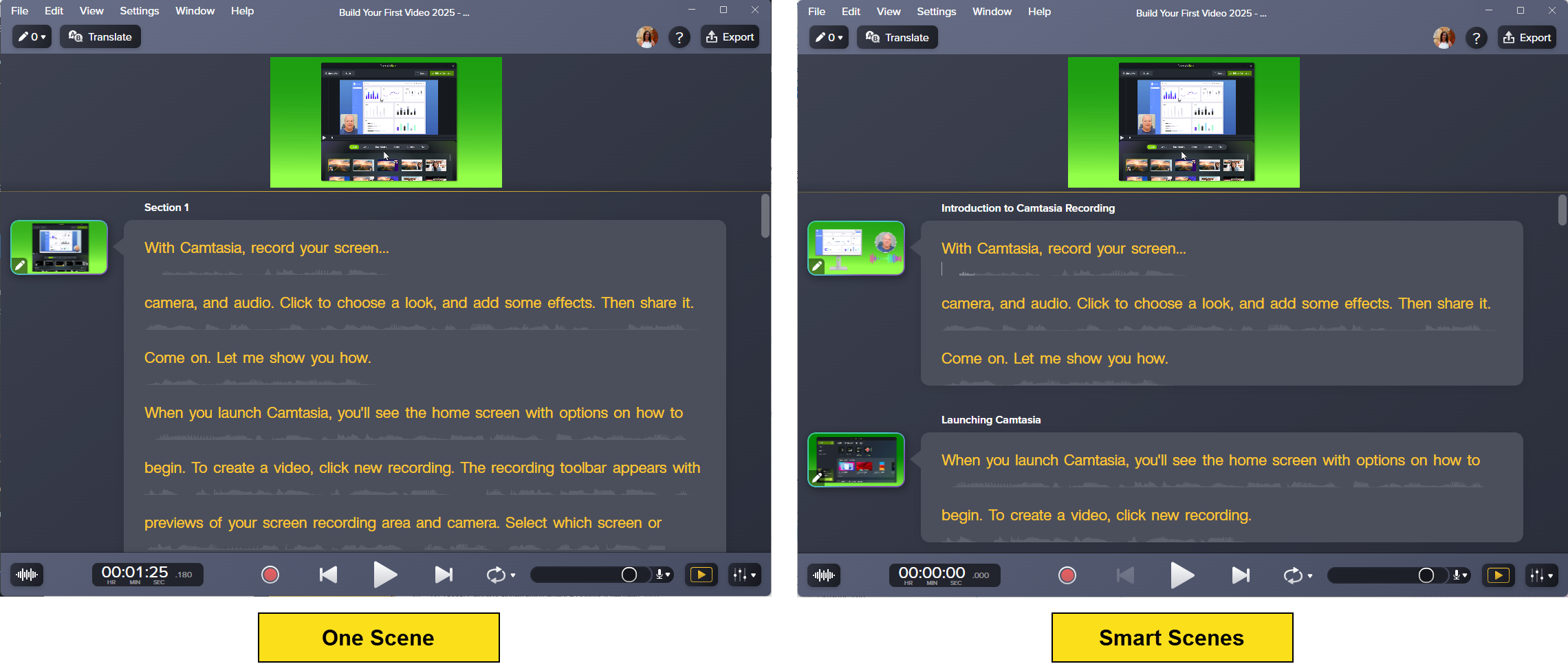
- Audiate transcribes the audio from Camtasia Editor.
- In Audiate, complete your desired audio edits. See Recommended Audio Edits.
- Click the Sync button or select File > Save and Sync.

Audiate automatically syncs your edits to the linked media on the Camtasia timeline.
Recommended Audio Edits
Try these editing recommendations to speed up the editing process and improve the quality of your video.

Filler Words and Pauses
Audiate automatically recognizes filler words, such as “Umms” or repeated words, and pauses in speech.
Click the Suggested Edits dropdown in the upper-left corner to automatically apply the recommended edits to these filler words and pauses.
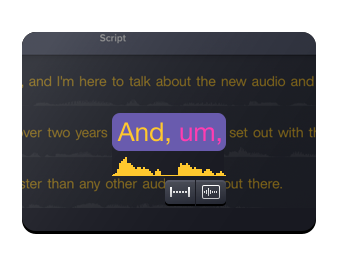
Text-Based Audio Edits
Audiate transcribes your narration into plain text, making any issues easy to spot and remove. Delete words or mistakes, or silence filler words. Your audio and video edits are automatically synced to your Camtasia timeline.

Generate Audio from Text or a Script
Is your recording environment a little noisy, or do you prefer not to use your own voice?
Replace your voice-over with a variety of customizable AI voices in different languages, styles, and tones.

Apply Audio Effects
Use studio-quality effects to easily remove room noise, enhance your voice, and solve common audio issues.

Generate Captions
Save time and automatically generate captions based on the audio transcription or a script.
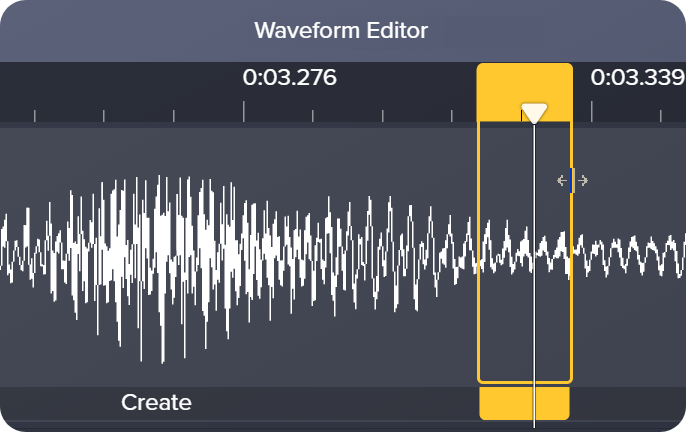
Precise Edits
Click the Waveform Editor button  or press Ctrl+1 (Windows) or Command+1 (Mac) to show the audio waveform for precise audio editing.
Sync Options in Audiate
You can manage the sync options between your Camtasia and Audiate projects. To access these options in Audiate, click the Sync dropdown.
| Option | Description |
|---|---|
| Edit Camtasia Timeline | Audiate syncs any edits made across all tracks on the Camtasia timeline for the duration of the linked media. This option keeps your video and audio in sync. |
| Edit Media Only | Audiate only syncs any edits made to the linked media in Camtasia. This option could cause media on your timeline such as video and audio to be out of sync. |
| Captions |
Select your desired caption option from the Captions dropdown:
|
| Unlink from Camtasia | Click Unlink From Camtasia to unlink the Audiate project from your media in Camtasia Editor. Audiate will no longer sync any edits made in Audiate with the media in Camtasia Editor. |