If you have an active business license or individual subscription, you can access the latest version of Snagit or Camtasia Editor.
Snagit 2026 is available for customers with active Business License and Individual Subscriptions.
All eligible customers should receive an email from TechSmith with instructions on how to install the latest version.
First check your email, and if you did not receive an email, please try the following.
Option #1: Check your TechSmith Account
- Visit manage.techsmith.com and if prompted, sign in to your TechSmith account.
- Go to the Keys tab.
- Download your software. Or, you can download the latest Snagit version here
- Copy your new key and paste it when prompted during the installation process.
Option #2: If you own a Snagit individual subscription
- Download Snagit 2026
- If prompted to sign in, enter the email you used during the purchase.
- If you are not prompted to sign in, it's possible Snagit activated automatically.
To check if you're already activated, open the Snagit Editor and select Help > About Snagit to confirm licensing information.
Option #3: Ask your IT/Admin
If your organization purchased Snagit on your behalf and you are unsure of your license status, please contact your IT/Admin for assistance.
Camtasia 2026 is available for customers with active Business License and Individual Subscriptions. This includes customers with an active Camtasia Plan (Essentials, Create, and Pro).
All eligible customers should receive an email from TechSmith with instructions on how to install the latest version.
First check your email, and if you did not receive an email, please try the following.
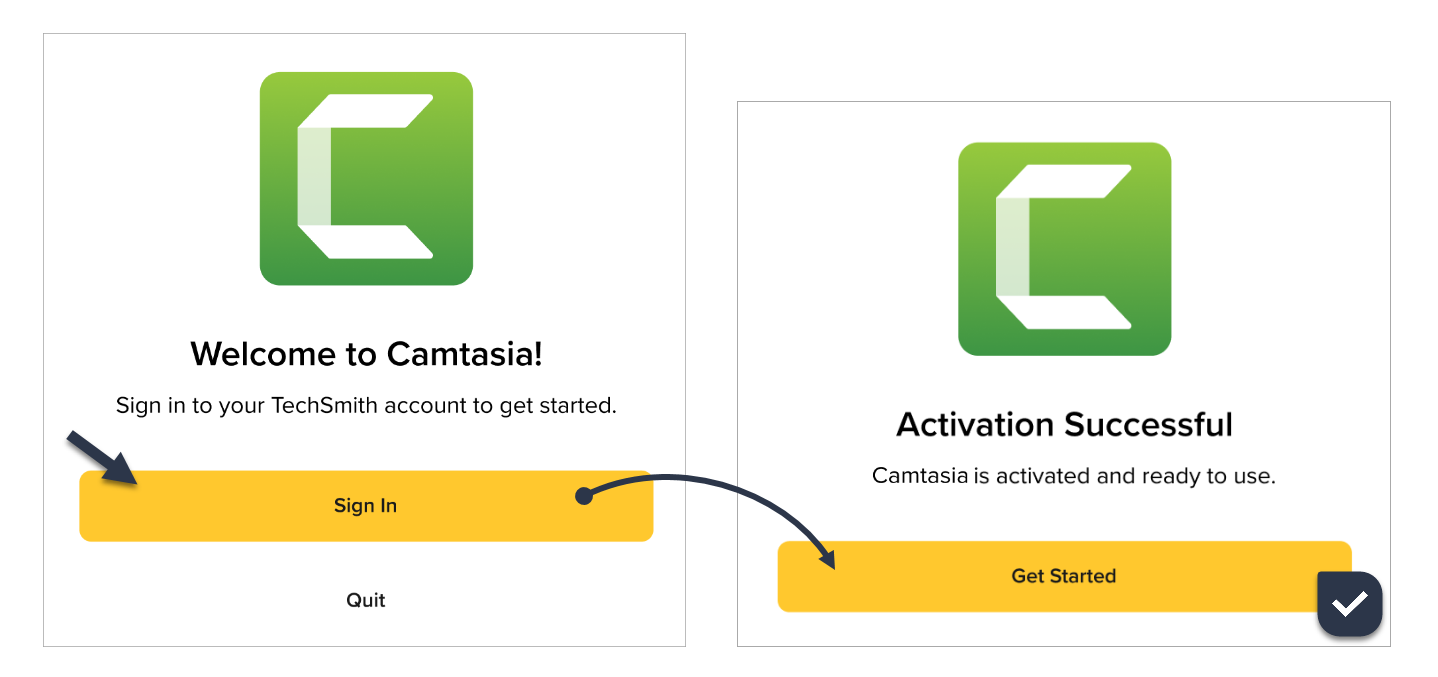
Option #1: Unlock by signing in
- Download Camtasia 2026
- If prompted to sign in, enter the email you used during the purchase.
- In some cases, like if you've owned a previous version, the software may automatically unlock.
To check activation, open the Camtasia Editor and select Help > About Camtasia.
Option #2: Check your TechSmith Account
- Visit manage.techsmith.com and if prompted, sign in to your TechSmith account.
- Select the Keys tab.
- Download your software. Or, you can download the latest Camtasia version here
- Copy your new key and paste it when prompted during the installation process.
Option #3: Ask your IT/Admin
If your organization purchased Camtasia on your behalf and you are unsure of your license status, please contact your IT/Admin for assistance.
Individual License: No software key is required with the subscription purchase! Sign into the software using the email address that was used to purchase to activate the software.